Silhouette vs. Cricut: Unbiased Review of Cutting Machines for DIY Enthusiasts
This comprehensive guide was initially published in 2017 and has been fully updated as of March 2022 to provide the most current insights and experiences.
Hello, fellow crafters and DIY enthusiasts! Today, I’m diving into a topic that generates a lot of questions: the ultimate face-off between Silhouette and Cricut cutting machines. My goal is to offer you a completely unbiased and honest review of these popular vinyl cutters. While I always share my genuine thoughts, even in sponsored content, I’ve specifically chosen to write this post without any compensation from either company. This ensures that you receive a purely objective perspective, allowing you to confidently decide which cutting machine is the perfect fit for your crafting needs.
It’s important to clarify that my review is based on extensive personal experience with the Silhouette Cameo and the Cricut Explore Air 2. I also own a Cricut Maker, which I’ve reviewed separately. Please note, I have not personally used the absolute latest models, specifically the Silhouette Cameo 4 (released September 2019), the Cricut Explore Air 3, or the Cricut Maker 3 (both released June 2021). However, I’ve stayed informed about their advancements through user feedback and research. If you’re leaning towards a Cricut but are unsure which model, my guide “Which Cricut Machine is Right For You?” can help narrow down your choice.
When evaluating these machines, remember that your decision should not solely depend on the cutting machine hardware. The accompanying design software is equally, if not more, critical to your overall crafting experience. Both aspects play a significant role in determining user-friendliness, creative freedom, and project success.
Table of Contents
This post does include affiliate links to both machines for your convenience (which means if you make a purchase after clicking a link I will earn a small commission which helps keep my blog up and running but it won’t cost you a penny more)! Click here to read my full disclosure policy. By offering affiliate links for both products, I maintain my commitment to impartiality, as I have no financial incentive to recommend one brand over the other.
Silhouette vs. Cricut: Which Cutting Machine Is Right for You?
My In-Depth Review of The Silhouette CAMEO
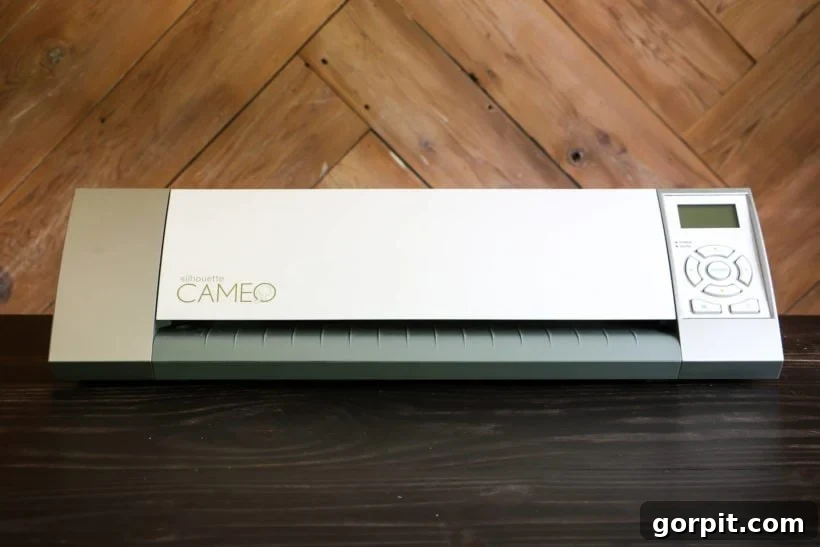
Let’s kick off this Silhouette vs. Cricut comparison with the Silhouette Cameo, as it was my very first venture into the world of electronic cutting machines many years ago. I initially fell head over heels for it. The ability to cut intricate designs far faster and more precisely than I ever could with scissors or an X-Acto knife was truly revolutionary. I was bursting with excitement, creating everything from custom signs and elaborate vinyl decals to personalized cards and gift tags. The creative possibilities seemed endless, and I was genuinely pumped about this new DIY tool.
However, my enthusiasm was often tempered by frequent project failures. I’ve wasted an embarrassing amount of vinyl with my Silhouette Cameo, enough that I’d rather not calculate the monetary loss. While I initially dismissed these setbacks as an inherent part of using cutting machines – assuming all models had their quirks and occasional slips – the recurring frustration was undeniable. It made me question the reliability of the technology, despite its clear advantages.
Now, let’s address some common questions I receive regarding the Silhouette Cameo in more detail:
Silhouette Design Software: Ease of Use
Silhouette Studio is a downloadable software application essential for operating your Silhouette machine. I was somewhat surprised to find the software relatively easy to navigate, especially given its reputation among some users for being overly complex. I personally appreciated its robust features, which allowed me to either purchase pre-designed images from their extensive library or unleash my creativity by designing custom graphics from scratch. However, a crucial point to note is that if you intend to import your own .svg files – a popular format for vector graphics – you’ll need to upgrade to the “Designer” version of the software, which typically costs around $50. For many users, however, the free version, combined with the vast array of affordable designs available for purchase in the Silhouette library, will be more than sufficient.
From an aesthetic standpoint, I’ve often felt that the images available within Silhouette Studio tend to have a slightly more professional and refined look compared to those in Cricut Design Space, though I believe Cricut is rapidly closing this gap. Another notable advantage of Silhouette Studio is its intuitive functionality for typing text on a curved path, a feature that, at the time of writing, is not as straightforward or readily available in Cricut Design Space.
In summary, if you possess graphic design experience or are keen to delve into creating original designs, Silhouette Studio offers considerable freedom and power. Conversely, if you’re new to graphic design and prefer to work with pre-existing templates rather than starting from scratch, you might find the software’s learning curve somewhat steep and potentially frustrating. The consensus among users who have experienced both Silhouette Studio and Cricut Design Space is that the latter is generally more user-friendly, particularly for beginners.
For a visual tour, you can watch the video below for a peek inside the Silhouette Studio interface:
Silhouette Cameo: Cutting Performance
To put it mildly, the cutting performance of my Silhouette Cameo often felt like it depended on the machine’s mood. All joking aside, I frequently experienced inconsistent and unpredictable results when using it for various projects.
The majority of my frustrations arose when attempting to cut long lengths of vinyl. This is particularly ironic, as “matless cutting” of vinyl up to 10 feet long is heavily promoted as one of the Silhouette’s standout features. The concept is incredibly appealing: imagine creating an expansive design and producing it with a single vinyl load and one continuous cut job! In theory, it sounds like a dream for large-scale projects, but in practice, my experience was far from ideal.
Firstly, loading rolled vinyl directly into the Silhouette Cameo without a mat proved to be consistently challenging. The natural curl of the vinyl roll often caused it to jam repeatedly as I tried to feed it into the machine. Even when I managed to successfully load it, manual straightening was almost always necessary to ensure a somewhat even feed. However, the most significant and recurring problem was the vinyl slipping during the cutting process, even after carefully positioning the rollers and meticulously following all instructions. The disappointment of unloading a six-foot length of vinyl, only to discover that it had shifted mid-cut, resulting in distorted lines and a completely ruined project, was immense. This led to wasted time, wasted vinyl, and ultimately, wasted money – an experience that was far from enjoyable.
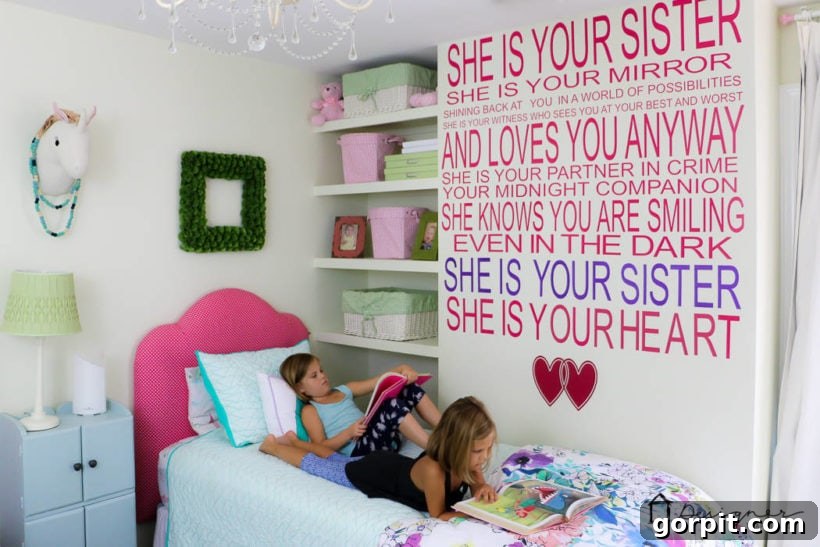
For instance, when I embarked on creating this large DIY vinyl wall quote for my twin daughters’ former bedroom, I estimate that I wasted at least three entire rolls of vinyl due to these persistent slipping issues. There were moments when I was on the verge of tears from sheer frustration.
In fairness, I must acknowledge that I never encountered such issues when cutting cardstock with the Silhouette Cameo; its performance with paper-based materials was generally reliable. However, my overall experience with vinyl cutting was largely negative. While I haven’t used the latest Silhouette Cameo 4, conversations with other crafters who own the newer versions suggest that the vinyl slipping and loading difficulties I experienced may still be persistent issues. This indicates that while the machine has its strengths, reliable long-length vinyl cutting without a mat remains a significant challenge for many users.
Silhouette Cameo: Strength and Material Versatility
When it comes to the cutting power and versatility of materials, independent tests have shed light on the capabilities of previous Silhouette Cameo versions compared to the Cricut Explore. These tests revealed that the Silhouette Cameo was not as strong as the Cricut Explore, especially concerning the force it could exert during cutting. You can review the detailed strength test results by clicking here. To summarize the findings (taken directly from the testing report):
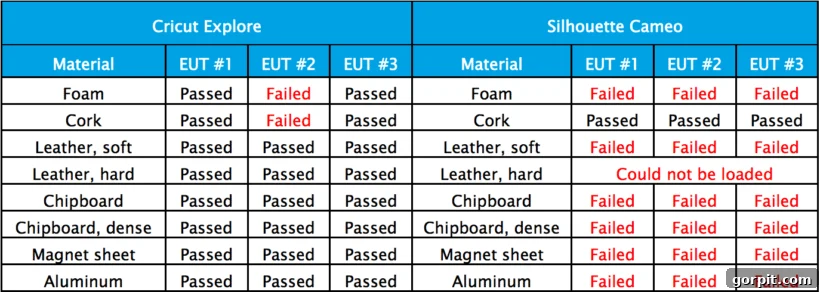
The Silhouette Cameo 4, the current iteration, boasts significant improvements in cutting force and material compatibility compared to its predecessors. It is reportedly capable of cutting a wider array of materials, including denser options like basswood and various fabrics, which opens up new creative avenues for users. However, as noted at the beginning of this review, I have not had personal hands-on experience with this latest version of the machine. Therefore, my insights regarding its enhanced strength and material versatility are based on manufacturer claims and feedback from the crafting community rather than direct observation.
Silhouette Cameo: Cost and Value
The Silhouette Cameo typically retails for approximately $299. While this is its standard price point, it’s worth noting that the machine can often be found on sale, particularly during major shopping events or promotional periods. When considering the overall value, potential buyers should factor in not only the initial machine cost but also the potential need to upgrade the Silhouette Studio software for .svg file compatibility, which adds an additional fee. This layered cost structure should be weighed against the machine’s performance characteristics and your specific crafting requirements.
My In-Depth Review of Cricut Explore
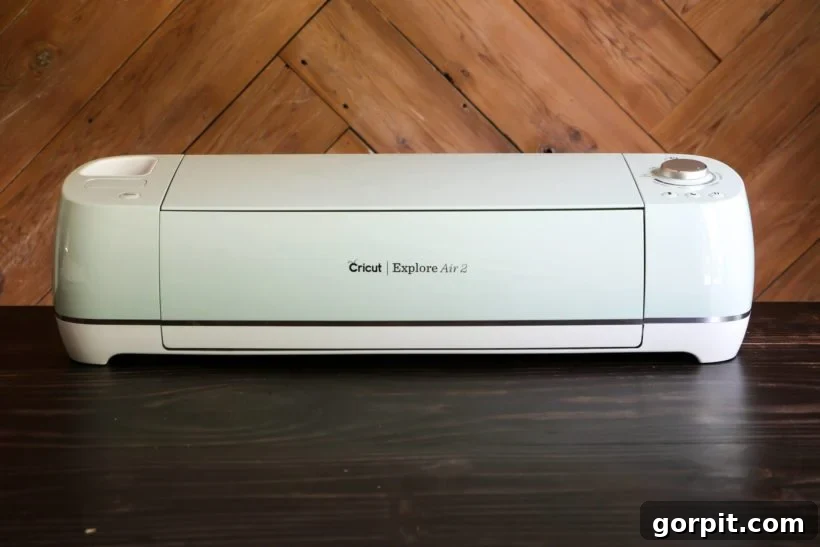
Now, let’s turn our attention to the Cricut Explore, a machine I’ve been using consistently for over five years. My primary experience is with the Cricut Explore Air 2, though the Cricut Explore series offers several models tailored to different needs. While I also proudly own a Cricut Maker – and you can read my full review of the Cricut Maker here – I find myself reaching for my Cricut Explore Air 2 much more frequently. This is largely because my everyday crafting projects, such as cutting vinyl labels or intricate cardstock designs, don’t typically require the advanced capabilities for thicker materials like wood and fabric that the Maker offers. Since acquiring it in September 2016, I’ve used my Explore machine extensively and can genuinely say I have not encountered a single issue or problem in over five years of consistent, heavy use. This reliability has been a game-changer for my crafting workflow.
Having entered the world of cutting machines with a Silhouette, I was initially convinced I would never switch allegiance. This reflects my personality when it comes to technology and even cars: I tend to become deeply comfortable with what I use and am incredibly resistant to change. Therefore, to say I was skeptical when I unboxed my Cricut Explore machine would be a significant understatement. Yet, from the moment I started, I was immediately intrigued and impressed.
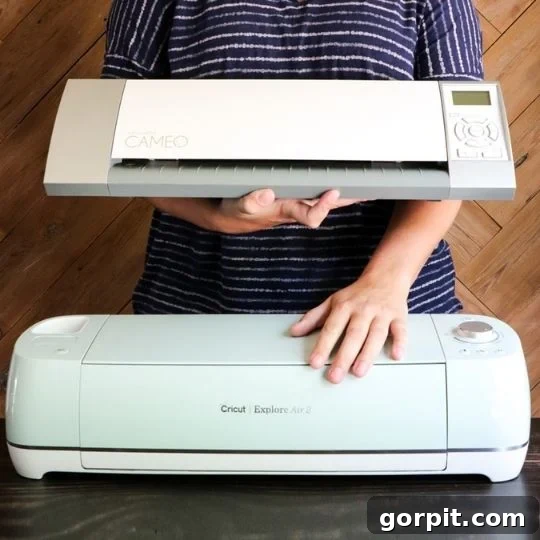
For starters, the Cricut Explore felt noticeably more substantial and robust than the Silhouette Cameo. The lid on my Cameo often felt flimsy and would flop around when I moved the machine, creating a sense of instability. More critically, the internal belts, which are vital for the Cameo’s operation, were almost impossible to avoid touching when I picked up the machine, leading to constant worry about accidental damage. With the Cricut Explore, I instantly felt a much greater sense of durability and peace of mind, alleviating my paranoia about its long-term integrity.
Now, let’s delve into some of the most common questions I receive about Cricut cutting machines:
Cricut Cartridges: A Thing of the Past?
This is a widely held misconception that I myself once believed, which initially steered me towards a Silhouette machine. But let me emphatically clarify: no, no, no! The era of mandatory, separately sold cartridges for Cricut machines is long gone, a relic from approximately eight years ago. Today, Cricut operates on a modern, digital platform much like Silhouette. Users can effortlessly create their own designs from scratch, upload a vast array of existing images, or purchase individual design components directly within Cricut Design Space. In this regard, the creative workflow and accessibility of designs are now very much comparable to what you find with Silhouette, offering extensive digital freedom rather than relying on physical cartridges.
Uploading Custom Images to Cricut Design Space
Another persistent rumor suggests that you cannot upload your own custom images or designs to Cricut Design Space. This is completely false and has never been true. Uploading your personalized designs and images is a straightforward and intuitive process within the software. Unlike Silhouette Studio, where you might need to purchase an upgrade to enable .svg file uploads, Cricut Design Space offers this capability as a standard feature, without any additional cost. This means you have full freedom to bring your unique creations into the Cricut ecosystem without any extra hurdles or expenses.
Cricut Explore: Cutting Precision and Efficiency
When it comes to cutting, the Cricut Explore performs like a dream, seriously! The difference was immediately apparent and genuinely shocked me. The cuts are notably quieter, significantly faster, and, most importantly, incredibly cleaner. I hadn’t realized how frequently I had to meticulously trim and clean up the edges of my Silhouette cuts until I experienced the crisp, precise output from my Cricut Explore. Across all the materials I’ve used so far—including cardstock, various types of vinyl, and even chipboard—the cuts have been consistently perfect. The disparity in cutting precision between my Cricut and Silhouette machines was truly astounding.
Now, let’s address a key difference we discussed earlier: cutting capacity. While Silhouette Cameo machines can cut lengths of up to 10 feet (both machines typically handle materials up to 12 inches wide), the Cricut Explore traditionally limited cuts to materials up to 2 feet long, always requiring a cutting mat for vinyl. Initially, this felt like a significant drawback, making me somewhat bummed about the shorter cutting length and the necessity of a mat. *A crucial update: The newer Cricut Explore 3 models now offer an impressive cutting capacity of up to 13 inches by 12 feet when utilizing Cricut Smart Materials, eliminating the need for a mat for certain projects.*
However, my perspective completely shifted after I completed my first large vinyl project using my Cricut Explore. It was then that I truly understood and appreciated why cutting vinyl with a mat, and in manageable sections of around two feet at a time, is often the superior approach for reliable, precise results. The stability provided by the mat virtually eliminates the slipping issues I constantly faced with matless cutting on the Silhouette.
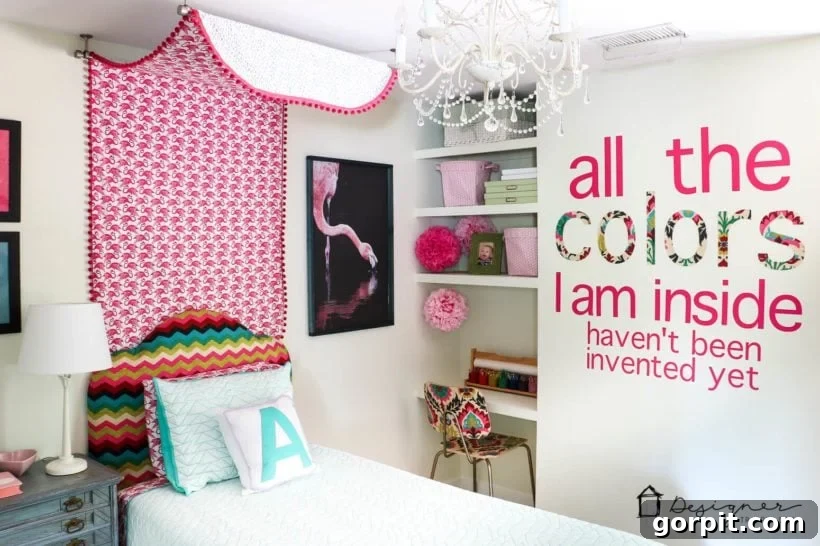
Here’s a photo of the DIY wall decals I created for my daughter Attley’s room (we recently moved our twin girls into separate bedrooms). This is the same wall where I previously struggled with vinyl decals using my Silhouette. This time, cutting with my Cricut Explore, I wasted not even a single inch of vinyl – a truly triumphant moment! Beyond that, I used my Cricut to cut the word “colors” from chipboard, which I then coated with fabric and Mod Podge, and I couldn’t be happier with the beautiful, professional finish.
Cricut Design Software: Ease of Use
I’ll be honest: transitioning to Cricut Design Space was initially quite challenging for me. I suspect much of this difficulty stemmed from my deep familiarity with Silhouette Studio, leading to a degree of frustration when I first started using Cricut Design Space. One particular point of contention was its reliance on Adobe Flash, a technology that often caused performance issues. Thankfully, the updated version of Cricut Design Space has completely eliminated this problem, which is a huge improvement!
That said, as I mentioned earlier, the general consensus is that MOST PEOPLE find the Cricut Design Space software to be more intuitive and simpler to use compared to Silhouette Studio. I truly believe that if I had started my cutting machine journey with Cricut Design Space, I would have navigated it with ease. However, my ingrained habits from Silhouette Studio – as the saying goes, it’s hard to teach an old dog new tricks – meant I faced a learning curve I hadn’t quite anticipated.
Now that I’ve grown accustomed to Cricut Design Space, I find it incredibly user-friendly and perfectly suited for crafters who primarily want to create simple designs or work with existing templates rather than developing complex custom designs from scratch.
To be clear, you absolutely can create custom designs using the Cricut software, but the native design options are more limited compared to the extensive capabilities offered by Silhouette Studio. It’s important to remember that Cricut Design Space was primarily designed for importing designs created in other, more powerful graphic design programs. In essence, it was crafted with creative consumers in mind, rather than professional graphic designers. Therefore, I have no issue creating my custom graphics in external software like Adobe Illustrator and then seamlessly importing them into Cricut Design Space. This is precisely the workflow I followed when developing the graphics for my DIY Santa Sacks.
Historically, Cricut Design Space required an internet connection because it was a web-based program. However, it has since evolved into a downloadable software application, much like Silhouette Studio, offering offline functionality and greater stability.
For a closer look at its interface and features, watch the video below for a peek into Cricut Design Space:
Cricut Explore: Cost and Value
Regarding pricing, the Cricut Explore Air 2, which is the model I extensively use, typically retails for approximately $179. The newer version, the Cricut Explore Air 3, carries a retail price of around $299. Like the Silhouette, these machines are frequently offered on sale, providing opportunities for savings. When evaluating the value, it’s worth noting that Cricut Design Space’s ability to upload .svg files without an additional fee adds significant value, especially for those who plan to import custom designs, making it a potentially more cost-effective solution in the long run compared to Silhouette’s tiered software pricing for similar functionality.
The Ultimate Verdict: Cricut Explore or Silhouette Cameo?
For me, after years of hands-on experience with both brands, the clear and unequivocal winner is the Cricut. This conclusion has only solidified over time, particularly as I’ve become fully adept with Cricut Design Space. The Cricut machine consistently proves to be sturdier, more powerful, and delivers superior cutting performance across a variety of materials. Crucially, for the vast majority of users, Cricut Design Space is significantly more user-friendly and intuitively designed to meet their crafting needs. Even if the machines were to perform identically – which, in my experience, they do not – I would still confidently recommend Cricut over Silhouette to 99% of crafters, primarily because of its more accessible and reliable design software.
The only scenario in which I might consider recommending a Silhouette over a Cricut is for a very niche group of users: those who have a strong desire to create highly custom, intricate designs entirely from scratch AND who do not have access to or prefer not to use external graphic design software (such as Adobe Illustrator, Photoshop, or InDesign). This represents a tiny fraction of the crafting community. Even then, opting for a Silhouette in this situation might mean compromising on cutting machine performance to satisfy specific software preferences.
If you’ve decided that Cricut is the right brand for you but are still pondering which specific model to choose, don’t fret! My dedicated post on “Which Cricut machine is right for you?” provides a detailed comparison to help you distinguish between the Cricut Explore, Cricut Maker, and Cricut Joy, guiding you to your perfect match.
However, it’s worth noting that most individuals who enjoy designing graphics from the ground up (myself included) already utilize external, professional-grade software like Adobe Illustrator. In such cases, the optimal solution is to leverage these powerful external tools to create your custom designs and then import them into Cricut Design Space. This approach offers the best of both worlds: you get the creative freedom and advanced capabilities of professional design software combined with the superior performance and user-friendliness of a Cricut cutting machine, all without the added expense of software upgrades for .svg compatibility. This truly is the most effective strategy for maximizing your crafting potential!
Inspiring Projects with Cricut or Silhouette
Are you looking for concrete examples of the incredible projects you can create with a cutting machine? You can explore all of my Cricut and Silhouette projects here. Over the years, I’ve leveraged these versatile machines to craft a wide array of amazing DIY creations for my home and life, demonstrating their immense potential for personalizing and enhancing your living spaces.
More CRICUT Posts
SEE ALL Cricut POSTS
-
DIY Santa Sacks Your Kids Will LOVE!
-
Which is the Best Cricut Machine for You?
-
How To Make Labels With a Cricut Cutting Machine – My 2 Favorite Methods
-
Silhouette vs. Cricut – My Unbiased Review
-
Personalized Christmas Ideas With Cricut
-
DIY Advent Calendar With Cricut Air Explore 2
Other posts you may enjoy:
- How to Make Vinyl Wall Quotes Yourself
- Make ALL THE THINGS With the Cricut Maker
- Silhouette & Cricut Projects for Your Home and Life
- Cricut Cutting Review: DIY Crepe Paper Succulents
Wondering how I approach transforming rooms and spaces in our home? Check out Designer in a Binder®.
And if you want exclusive content and behind-the-scenes sneak peeks, be sure to subscribe before you head out!